Features

How to find
a calmer workflow

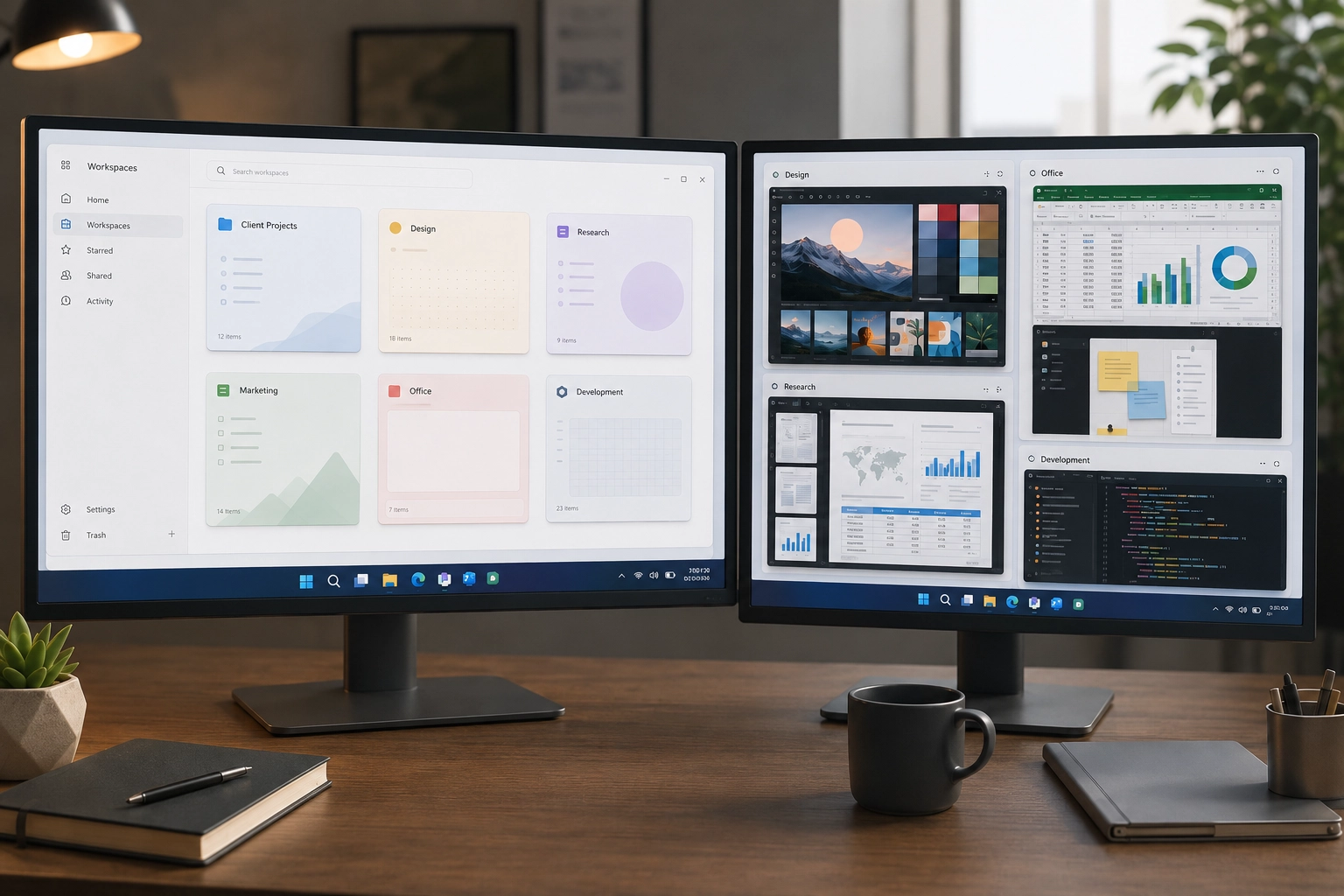
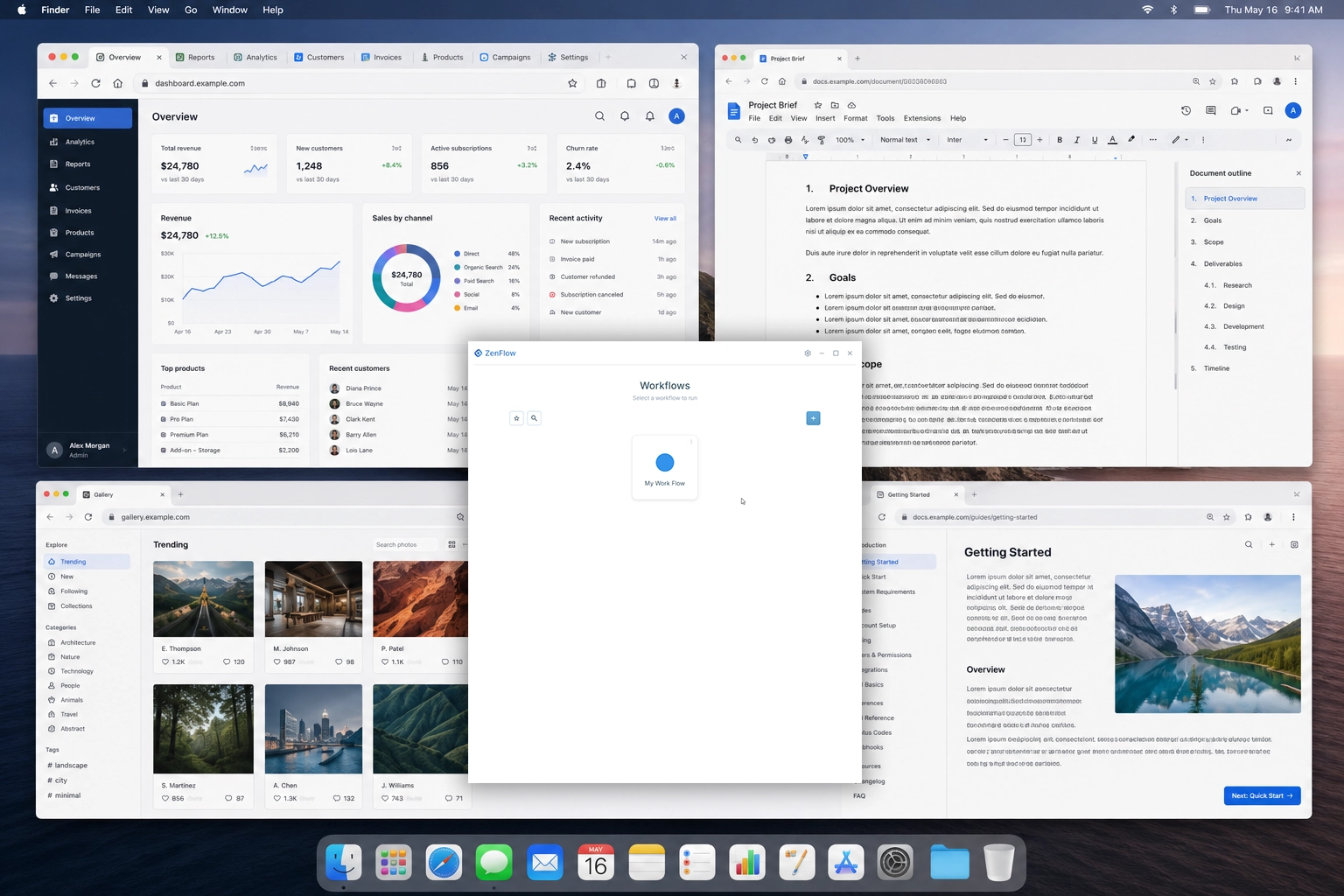
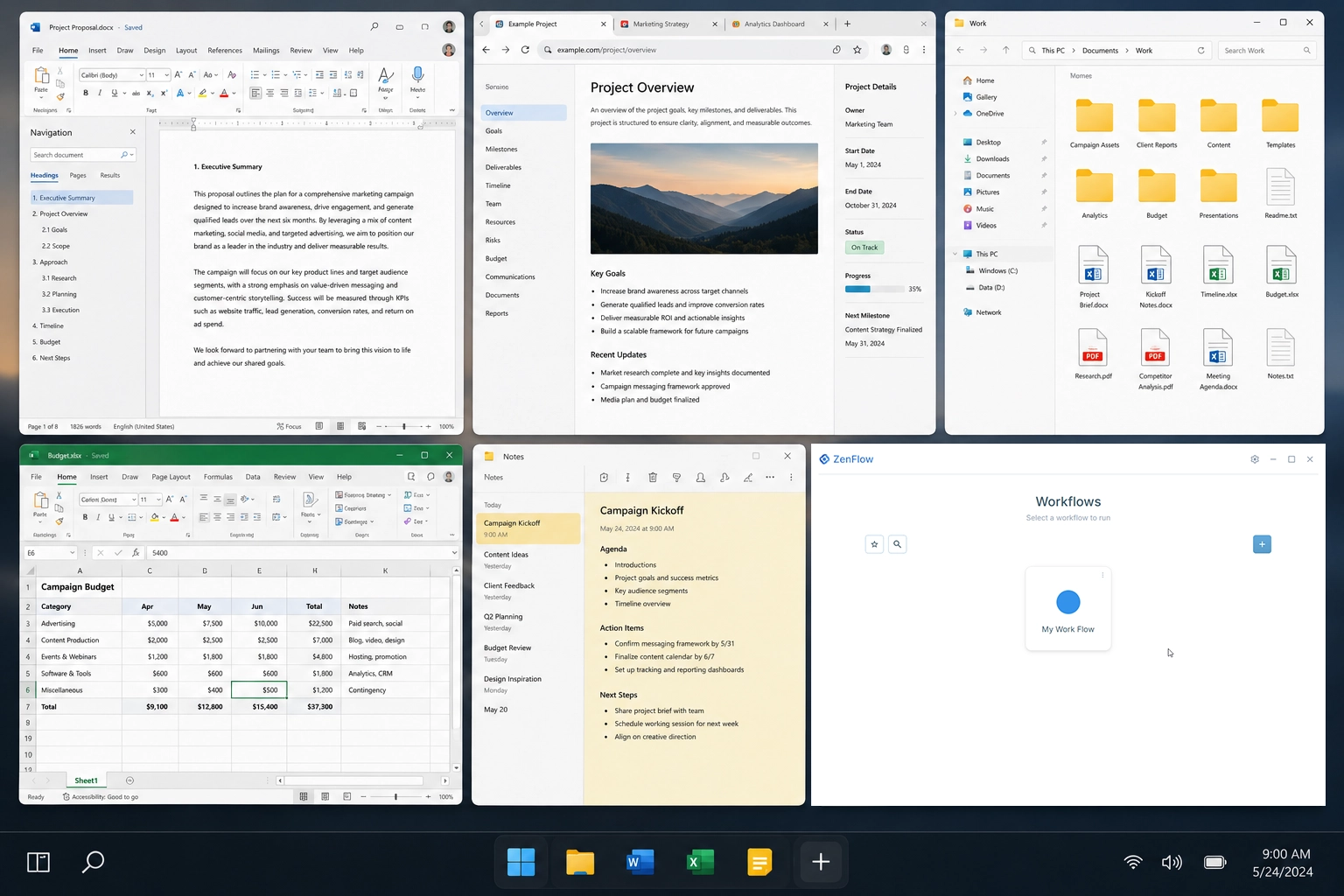
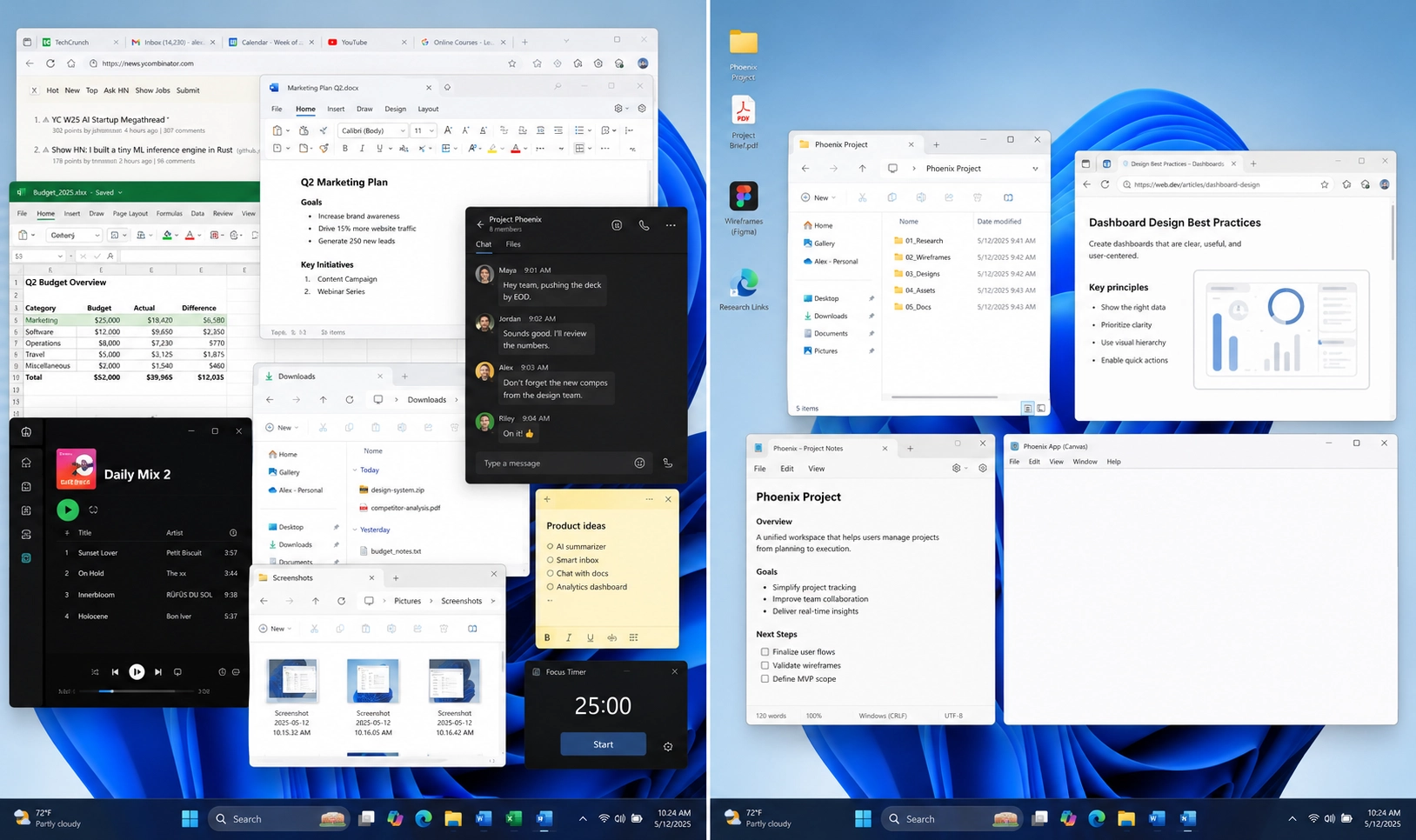
ZenFlow has a simple purpose. Save the apps, folders, files, and links that belong to any kind of work, then open them again inside a single workflow. When the work is done, stop the workflow and clear away what ZenFlow opened.

ZenFlow Saves

What your workflow can remember.

Pieces of work end up scattered across your desktop, browser, and files. ZenFlow brings those pieces together inside a workflow, so returning to a task feels calm and focused.

Feature

Saved workflows

Create named spaces for client projects, office admin, writing sessions, research paths, creative work, and development environments.

  • Name each workflow in the language of the work
  • Keep related apps, folders, files, and links together
  • Return to a familiar setup without rebuilding it from memory

Feature

Folders and files

Open the working materials that make a project feel ready: briefs, asset folders, spreadsheets, outlines, documents, and local references.

  • Attach folders that belong to one project
  • Add individual files you repeatedly need
  • Reduce the search through recent documents and desktop clutter

Feature

Browser tabs and links

Save the web pages that belong with the rest of your work: dashboards, web apps, issue trackers, documents, research sources, or client links.

  • Save URLs that belong to a workflow
  • Group research and web tools by project
  • Reopen the same context without hunting through browser history

Feature

App launching

Bring the right tools forward at the start of a session, from design software and writing apps to office tools, browsers, terminals, or editors.

  • Launch the programs that anchor a workflow
  • Keep different kinds of work from blending together
  • Make the first minute of work feel more intentional

Feature

Cleaner transitions

Move from one kind of work to another without dragging the last session into the next one.

  • Keep repeatable project contexts distinct
  • Use workflows as calm starting points
  • Lower the friction of returning after a break

Feature

Developer workflow support

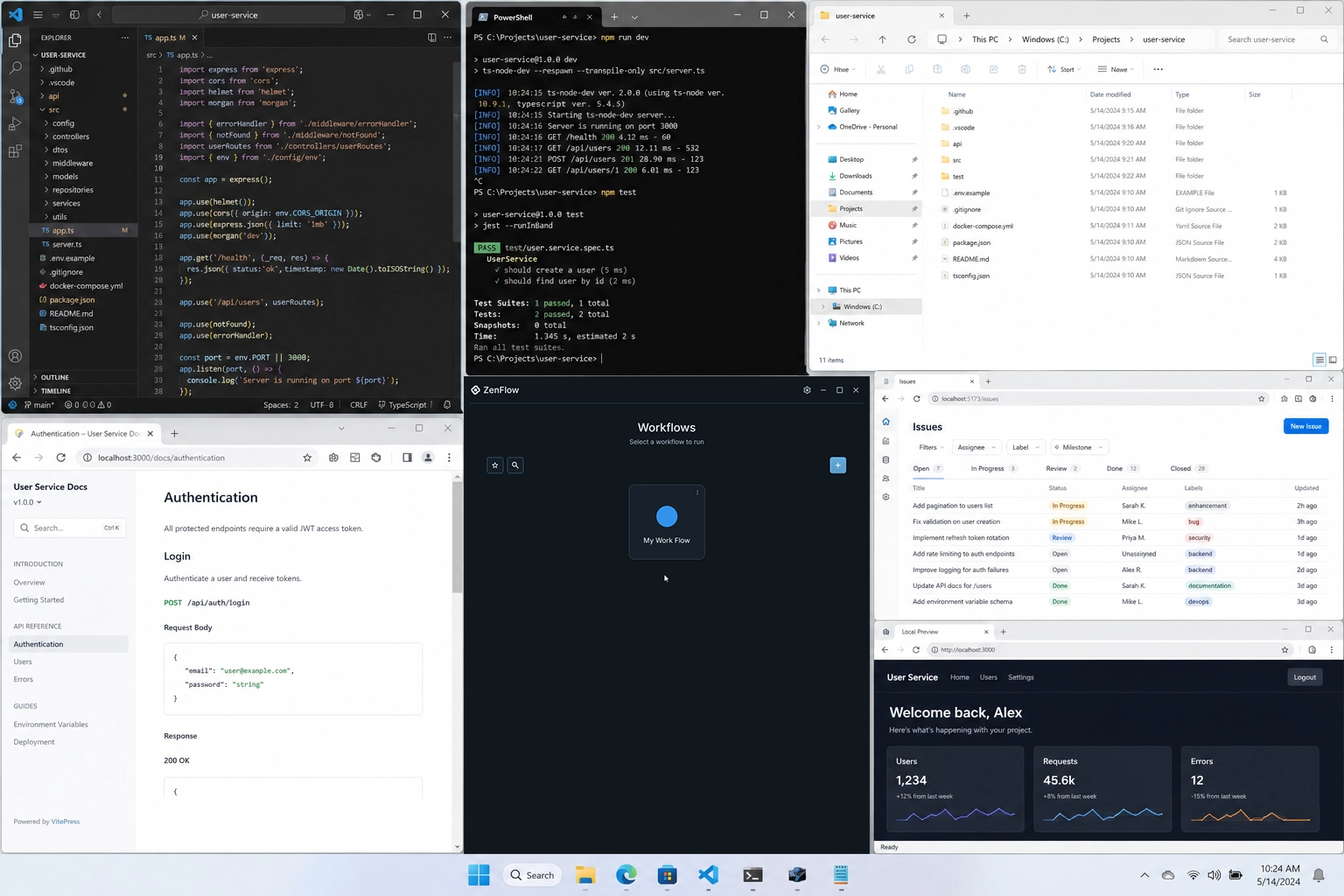
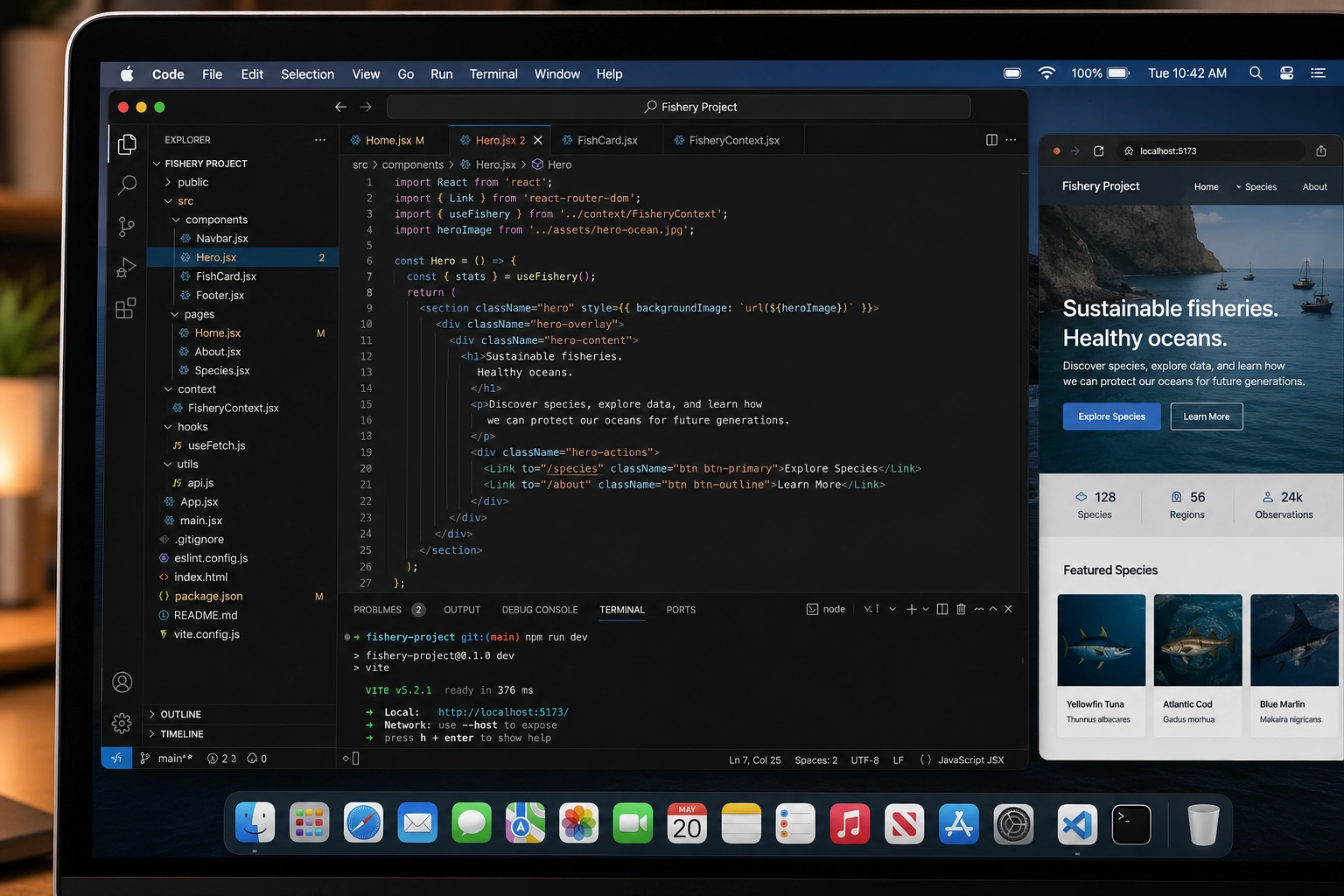
Technical users can build deeper project setups with editors, repos, local folders, reference tabs, and tool surfaces.

  • Represent full project stacks as workflows
  • Keep docs, repo folders, and tools together
  • Support technical setups without making the whole product feel technical

Play and Stop

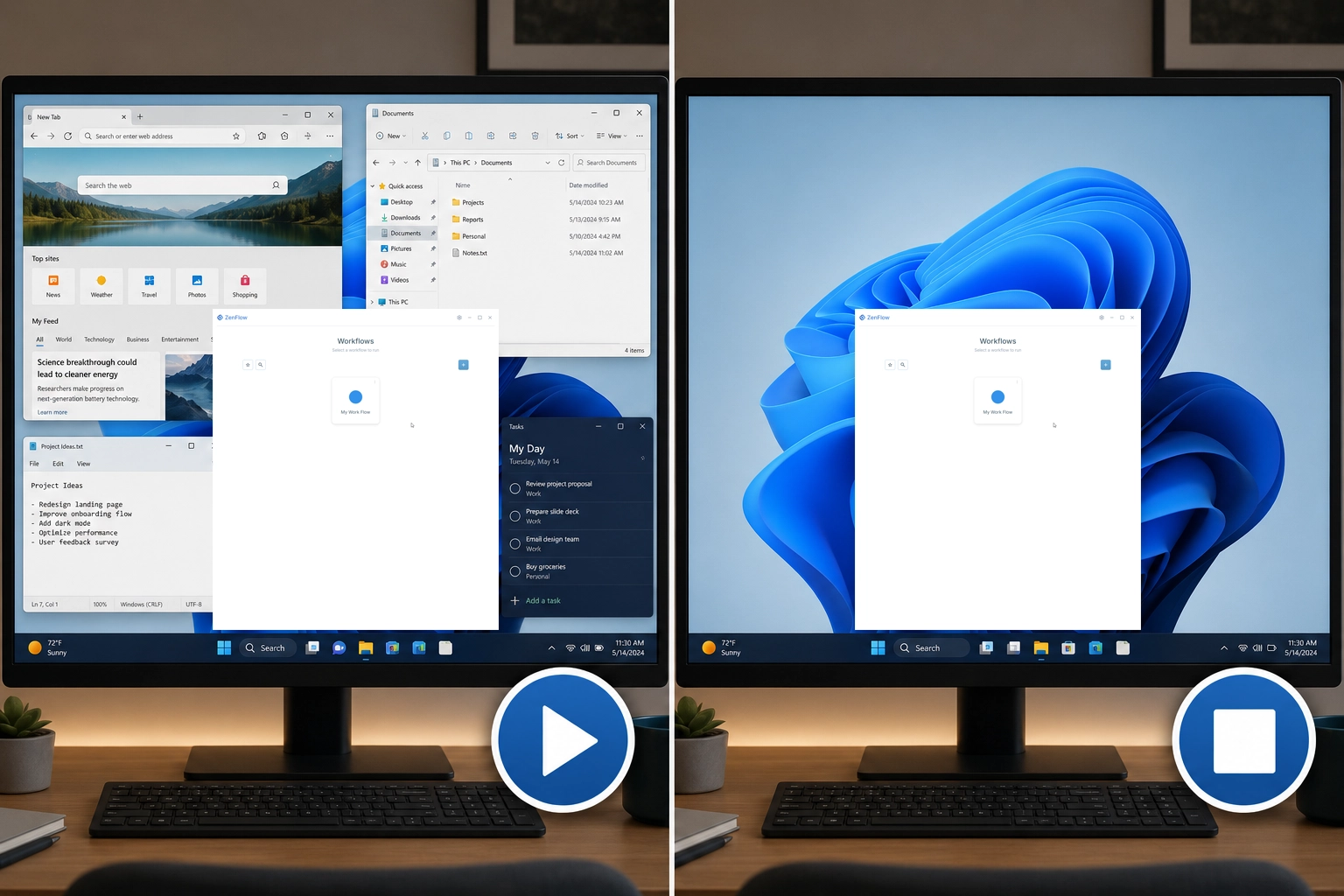
Start a workflow. Stop it when you are done.

ZenFlow uses a soft close request, so you stay in control if an app has unsaved work or needs your attention.

  • Start only the workflow you need
  • Stop the workflow when the task is finished
  • Clear your desktop without closing unrelated work

Real Work

Built for any kind of task

ZenFlow brings back all the tools you need in that moment.

Office workflow

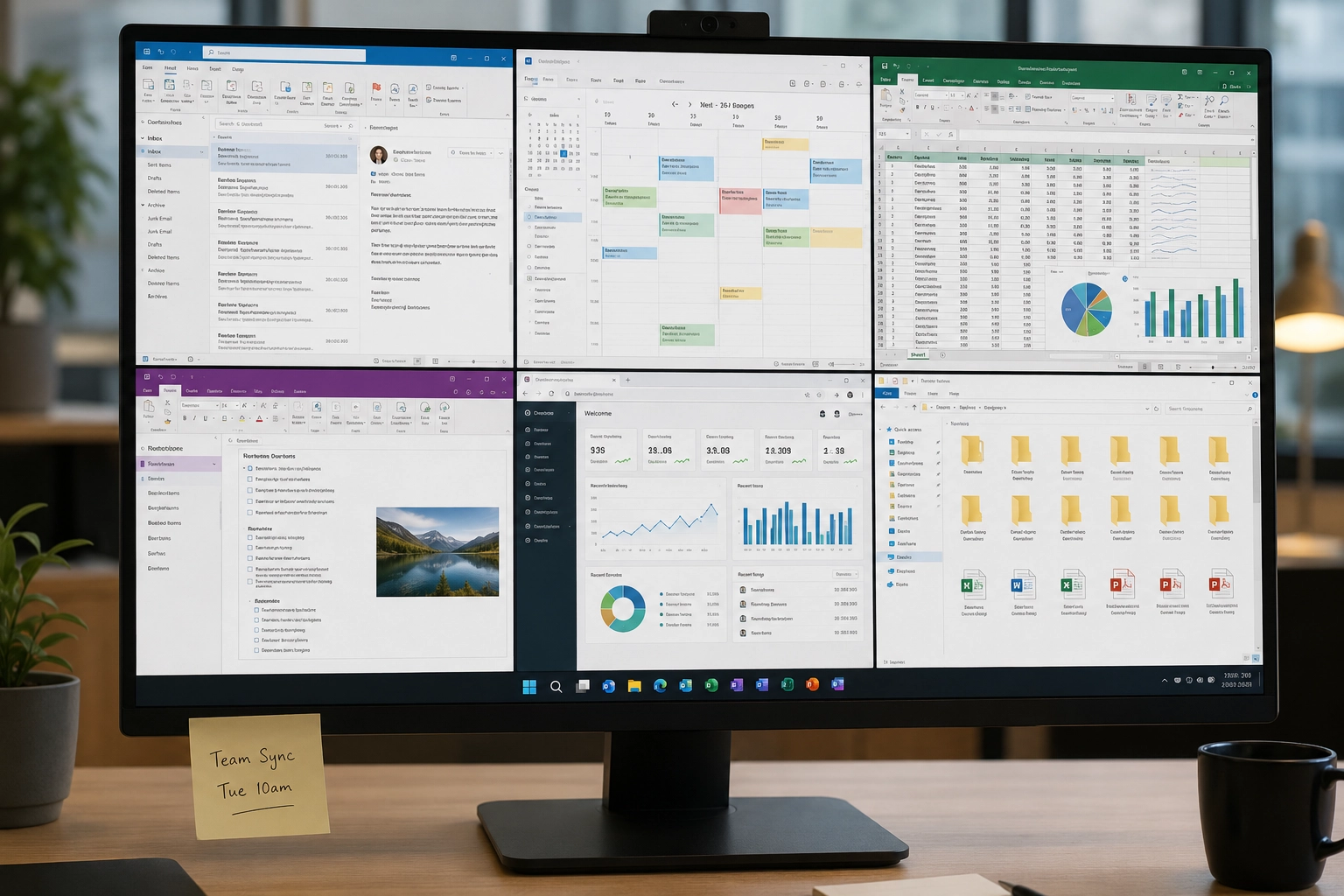
Open email, calendar, spreadsheets, notes, shared folders, and daily dashboards without rebuilding your morning setup.

Creative workflow

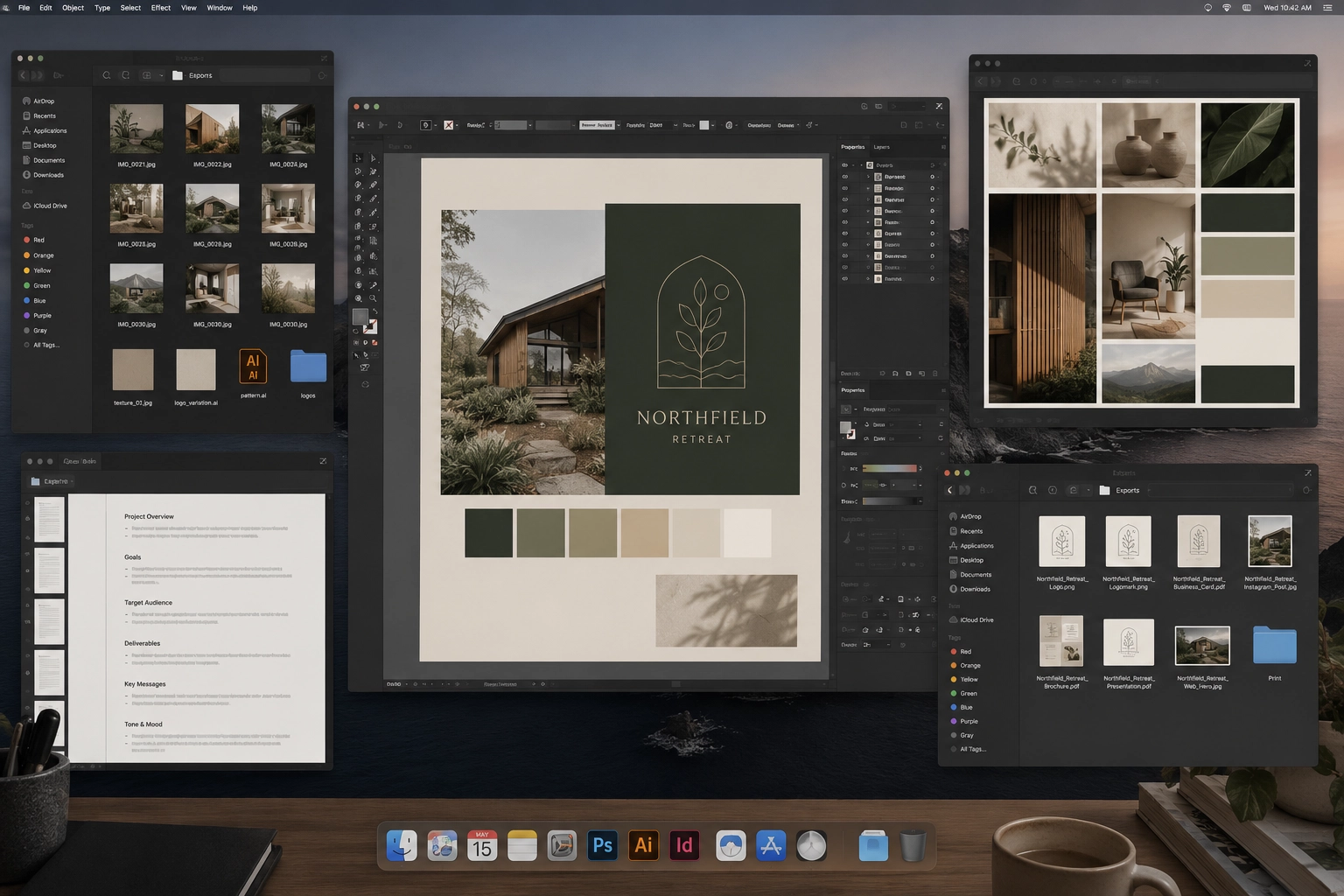
Open design tools, client folders, asset libraries, reference boards, and project files as one focused space.

Writing and research workflow

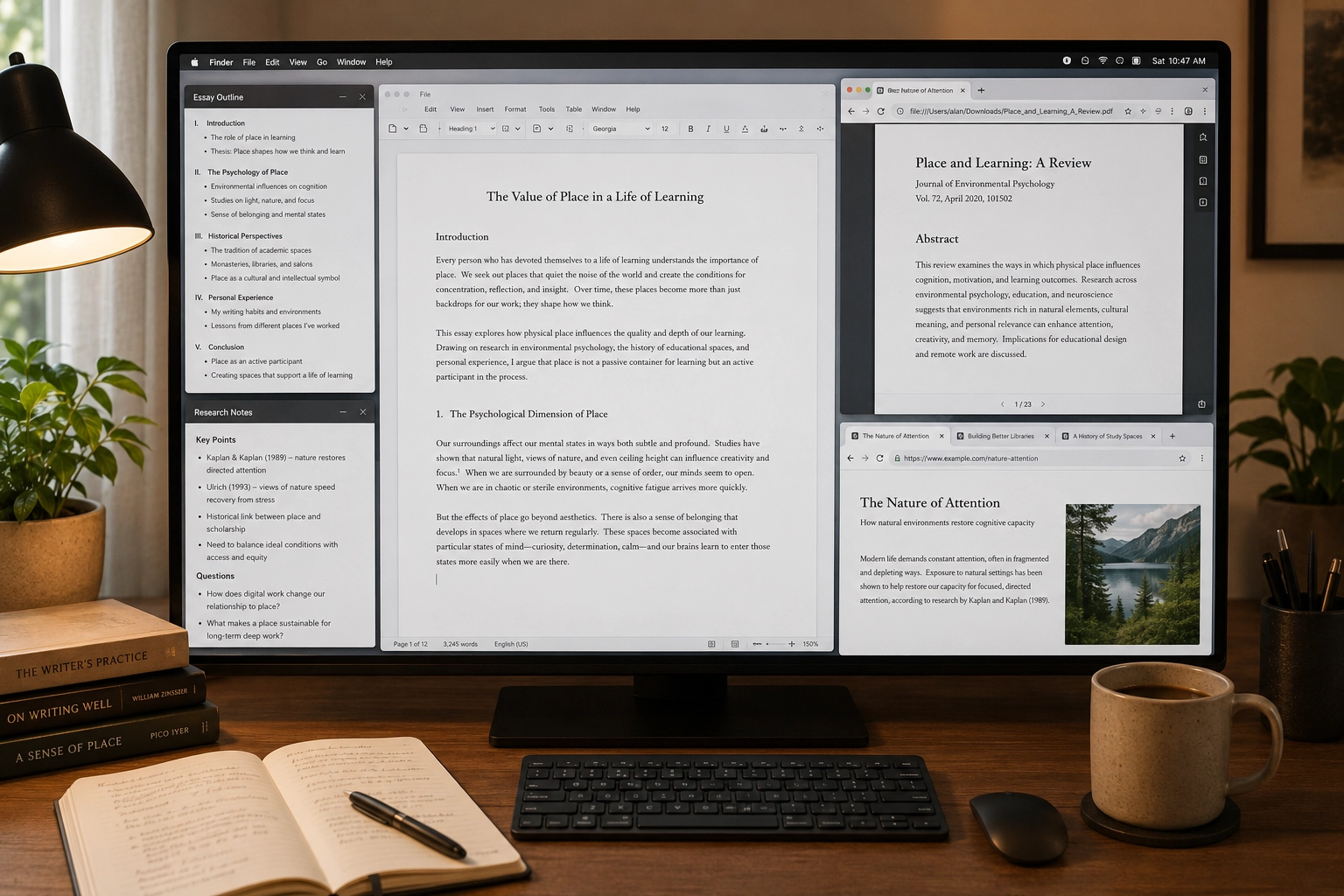
Return to drafts, outlines, source material, reading lists, notes, and reference tabs without leaving everything open all day.

Client project workflow

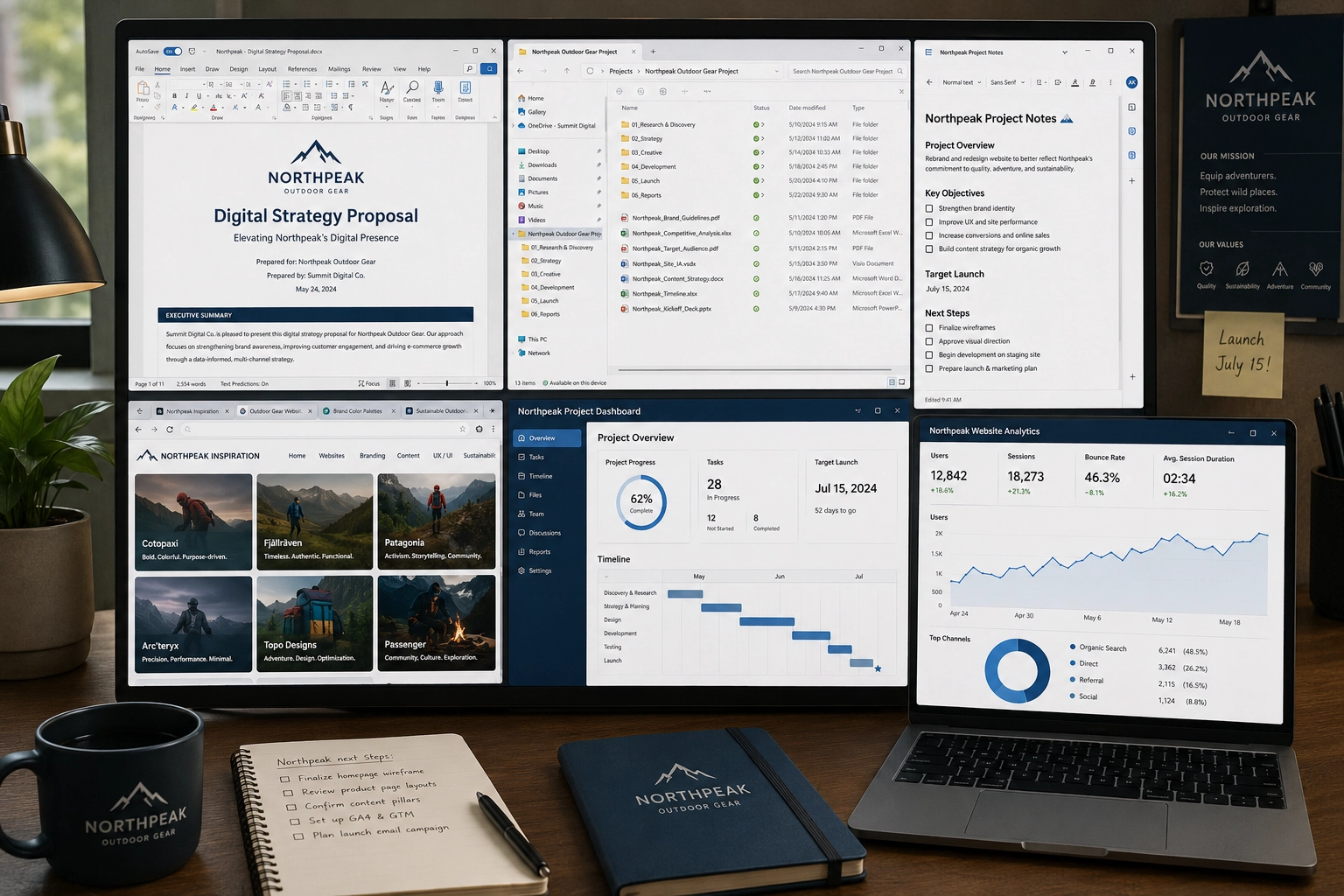
Keep proposals, folders, notes, browser links, and tools grouped by client instead of mixing every active project together.

Developer workflow

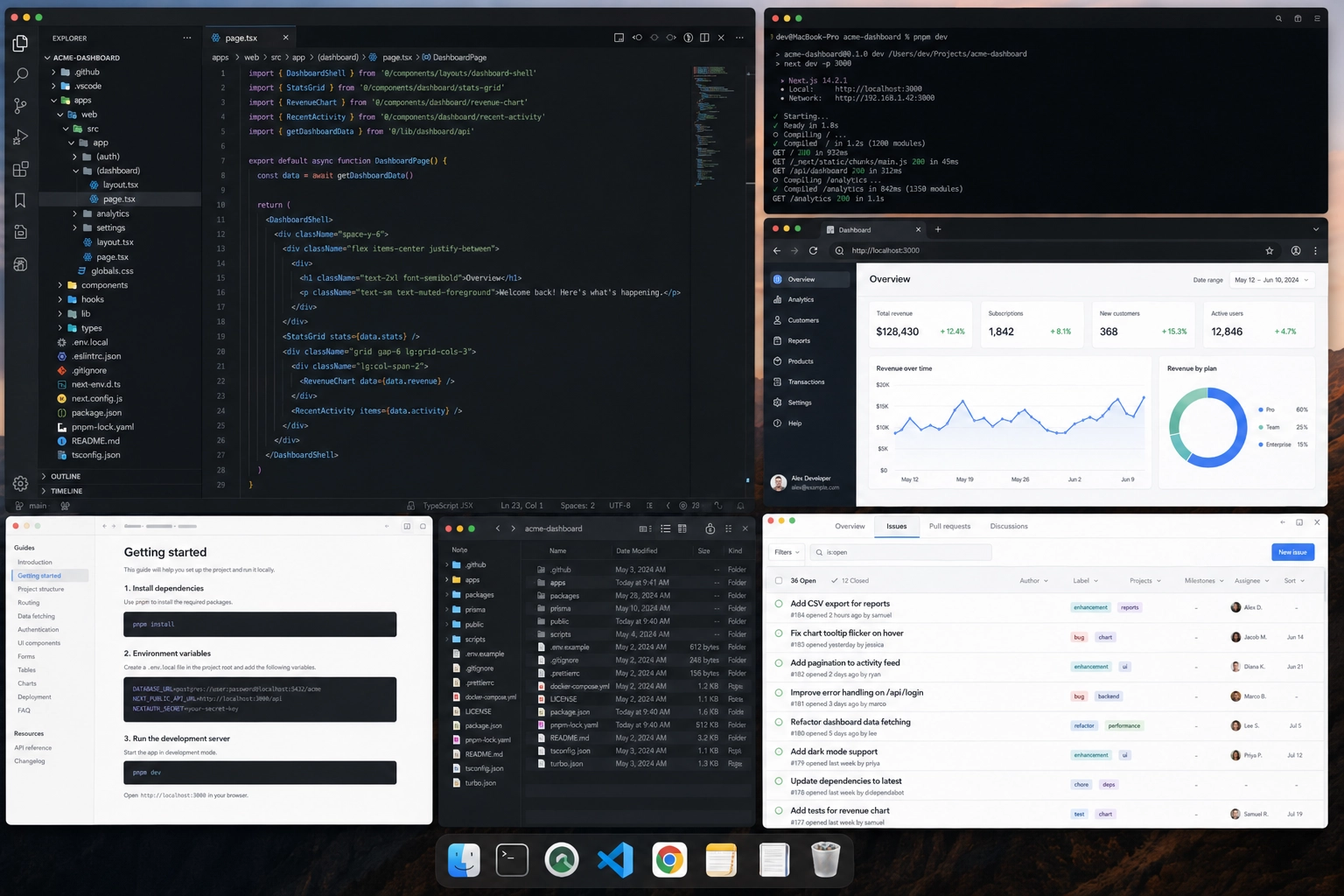
Open your editor, repo folder, terminal, docs, issue tracker, local references, and project tools when it is time to build.

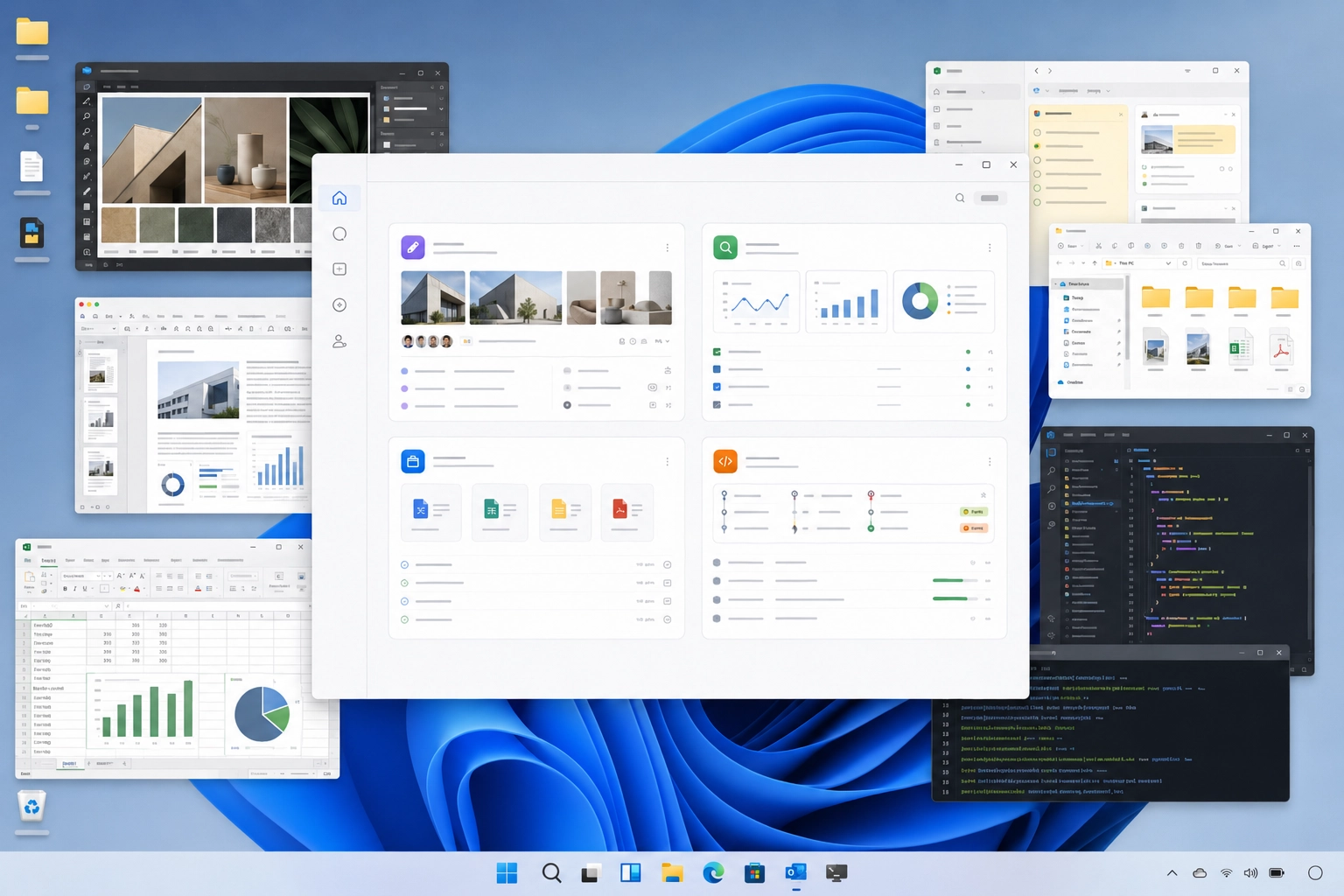
Technical Workflows

Extra depth for software engineers.

ZenFlow stays simple on the surface, but technical users can create deeper project setups. Developers can open environments, launch projects, open coding tools and team deliverables.

  • Represent full project stacks as workflows
  • Keep docs, repo folders, links, and tools together
  • Support technical setups without making the whole product feel technical

Join Beta

See the features in action

Return to work with ZenFlow and feel the difference of a calmer workspace.